Note
Access to this page requires authorization. You can try signing in or changing directories.
Access to this page requires authorization. You can try changing directories.
With the workspace browser you can create, browse, and organize Azure Databricks objects, including notebooks, libraries, experiments, queries, dashboards, and alerts, in a single place. You can then share objects and assign permissions at the folder level to organize objects by team or project. You can also browse content in Databricks Git folders. The workspace browser introduces a contextual browser that allows you to browse content, including content in Git folders, from within a notebook.
View objects in the workspace browser
You can view objects, including content in Git folders, in the workspace browser by clicking  Workspace in the sidebar. Objects created outside the workspace browser (for example, from the query list page) are viewable, by default, in the Home folder, where you can organize them within subfolders if you want.
For more information about workspace objects, see Introduction to workspace objects.
Tree view of the workspace browser side panel (Public Preview)
Important
This feature is in Public Preview.
The tree view of the workspace browser side panel provides a flexible, tree-based view of your workspace folder hierarchy directly within the editor. It allows you to navigate, expand, and focus on folders while keeping your workspace tree steady, improving the multi-asset authoring experience.

Open an asset and navigate the tree
When you open an asset in the editor—whether from full-page search, the full-page workspace browser, the homepage, or another entry point—the workspace browser side panel automatically displays the parent folder of the asset and its contents in a tree view.

Expandable descendants: You can expand any descendant folder in the tree without fully switching to that folder. Unlike the previous experience where only a single folder's contents were visible at a time, the tree view allows you to expand multiple folder levels simultaneously.

Change the root of the tree:
To set the root of the tree to a descendant of the current root, click the focus icon next to the folder.


To set the root to an ancestor of the current root, click the current root folder to open a dropdown that lists its ancestors. Select the ancestor folder to set it as the root of your tree.
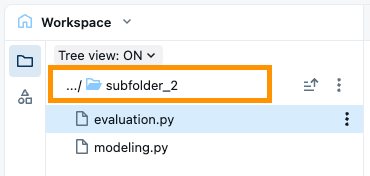


Fixed tree behavior
The tree remains fixed unless you explicitly change it. Switching between soft tabs in the editor does not automatically update the tree to the parent folder of the active asset.
To update the tree to display the parent folder of the asset you are currently viewing, click the sync to tab icon in the side panel.

Work with folders and folder objects
Folders contain all objects within a workspace: notebooks, libraries, files (in Databricks Runtime 11.3 LTS and above), experiments, and other folders. Icons indicate the type of the object contained in a folder.
To create a folder, from the workspace click Create and then select Folder.
To view the contents of a folder, click on a folder name to open the folder,

To share and grant permissions to all objects in a folder, right-click the folder and select Share. Enter the users, groups or service principals to which you want to share the folder and its objects, and then select the permission level. Click Add.
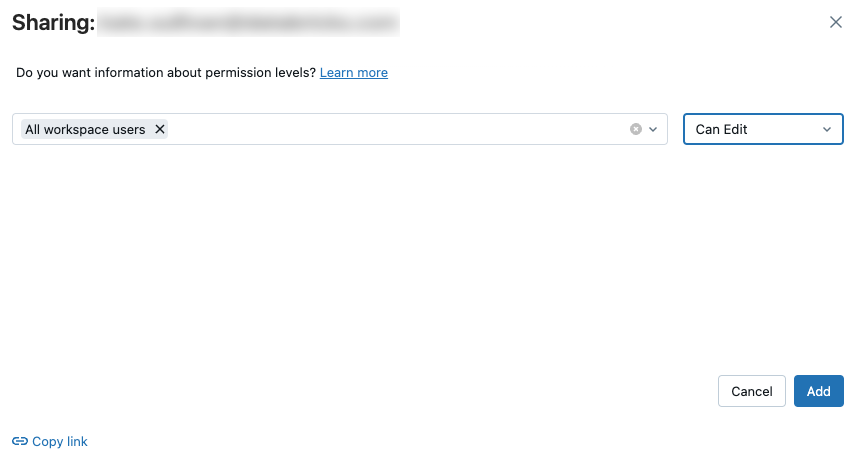
To perform an action on a folder, right-click the folder or click
 to the right of the object, then select a menu item.
Special folders
An Azure Databricks workspace has three special folders: Workspace, Shared, and Users. You cannot rename or move a special folder.
Workspace root folder
To navigate to the Workspace root folder:
- In the sidebar, click Workspace.
- In the file hierarchy, click
 .
.
The Workspace root folder is a container for all of your organization's Azure Databricks static assets.

Within the Workspace root folder:
 Repos contains folders backed by Git repositories.
 Shared is for sharing objects across your organization. All users have full permissions for all objects in Shared.
 Users contains a folder for each user.
By default, the Workspace root folder and all of its contained objects are available to all users. You can control who can manage and access objects by setting permissions.
User home folders
Each user has a home folder for their notebooks and libraries:

By default objects in this folder are private to that user.
Note
When you remove a user from a workspace, the user's home folder is retained. If you re-add a user to the workspace, their home folder is restored.
Authoring contexts
Important
This feature is in Public Preview.
When you open a Git folder or bundle project in the editor, it is added to a list of authoring contexts. An authoring context enables a focused view of the folders and objects associated with that context in the workspace browser. It also keeps track of the open soft tabs for that context so that the editor view only displays those tabs.
In the workspace page, click the editor icon associated with a Git folder or bundle to open the editor and add the Git folder or bundle as a context:
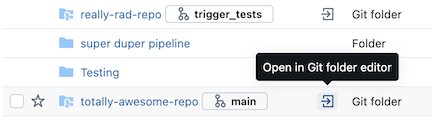
To switch the workspace browser view between a view of the current context and all files, click Folder or Files tab above the browser pane:

To change the authoring context, click the context dropdown menu above the browser pane and select a new context:

Python unit testing features
Azure Databricks offers a suite of tools to discover, track, and execute Python unit tests directly in the workspace. See Python unit testing in the workspace.