Note
Access to this page requires authorization. You can try signing in or changing directories.
Access to this page requires authorization. You can try changing directories.
Get started with quantum computing, discover the latest quantum breakthroughs, and create and run quantum programs with the help of Copilot in Microsoft Quantum on the Microsoft Quantum website.
The Microsoft Quantum website features:
- Copilot in Microsoft Quantum: AI meets the world of quantum. Copilot in Microsoft Quantum is a generative AI assistant to help you learn and explore quantum computing.
- Code in Microsoft Quantum: Explore and run Q# code directly in your browser using the built-in code window and compiler, and submit your jobs to the in-memory simulator or the free Quantinuum Emulator. Use Copilot in Microsoft Quantum to explain Q# code and also generate code from your prompts.
- Quantum Katas: Hands-on tutorials that teach quantum computing concepts and the Q# programming language.
- Code samples: The Microsoft Quantum code library is a rich set of samples using Q#, Python, and Qiskit code to demonstrate quantum scenarios.
- Quantum concepts: From the basics of quantum theory to advanced techniques of quantum computing, the Concepts library is a crash course to bring you up to speed on quantum computing.
- Videos: Browse the video library for interviews with leading quantum computing researchers and innovators.
- Microsoft Quantum blogs: Stay up to date with the latest quantum computing research and innovations.
All you need to start exploring Microsoft Quantum is a Microsoft (MSA) email account. You can create an MSA for free at https://account.microsoft.com/.
Run a Q# program
To start exploring Copilot and coding in Microsoft Quantum site, use one of the samples from the Quantum Samples dropdown.
Navigate to Quantum coding using any Microsoft (MSA) account.
Select Quantum Samples and then select Random Bits. The following code is copied to the code window.
/// # Summary
/// Simple Quantum Random Number Generator sample
///
/// # Description
/// This program implements a quantum random number generator by setting qubits
/// into superposition and then using the measurement results as random bits.
/// This is equivalent to generating a random number in the range of 0..2ᴺ-1.
operation Main() : Result[] {
    // Generate 5-bit random number.
    GenerateNRandomBits(5);
}

/// # Summary
/// Generates N random bits in the form of `Zero` or `One` results.
operation GenerateNRandomBits(nBits : Int) : Result[] {
    // Array for the results
    mutable results = [];
    for _ in 1..nBits {
        // Append next random result to the array
        results +=  [GenerateRandomBit()];
    }
    results
}

/// # Summary
/// Generates a random bit in the form of `Zero` or `One` result.
operation GenerateRandomBit() : Result {
    // Allocate a qubit
    use q = Qubit();
    // Set the qubit into uniform superposition of |0〉 and |1〉
    H(q);
    // Now the qubit has 50% chance of being measured as `One`
    // and 50% chance of being measured as `Zero`.
    // Measure and reset the qubit. Return the result.
    MResetZ(q)
}
Select In-Memory Simulator.
Select Run.
- The results are displayed in the Results field, and a histogram of the results is displayed below the code window.
- You can move the slider for Select number of shots to specify how many times the program is run.
- The Shots field displays the result for each shot.
To run your program again using a different simulator:
- Select the In-Memory Simulator dropdown and select Quantinuum's H-Series Emulator.
- Select the number of shots (currently limited to 20) and select Run.
- The job status is displayed at the top of the code window.
- A histogram of the results is displayed below the code window. Results for each shot aren't currently available with the Quantinuum Emulator.
Prompting the Copilot
- In the code window, select Explain code to prompt the Copilot in Microsoft Quantum to generate an analysis of the code sample.
You can prompt Copilot in Microsoft Quantum for almost anything quantum related, for example:
- "Explain the MResetZ operation"
- "Write Q# code that entangles two qubits"
- "Explain quantum interference"
Open your code sample on VS Code for the Web
To explore the sample code further, you can easily open the code in VS Code for the Web and take advantage of features such as improved error messaging, Q# syntax highlighting, and integrated debugging. If you already have an Azure account set up, you can connect directly to your Azure Quantum workspaces from VS Code.
To open your code in VS Code for the Web:
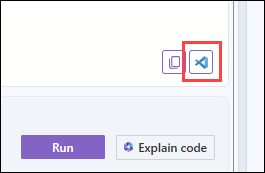
Select the VS Code icon on the bottom of the code window.
Next steps
You can also run quantum programs using the Azure portal or by setting up a local development environment.