Note
Access to this page requires authorization. You can try signing in or changing directories.
Access to this page requires authorization. You can try changing directories.
[This article is prerelease documentation and is subject to change.]
A test set consists of a group of up to 100 test cases. When you run an agent evaluation, you select a test set and Copilot Studio runs every test case in that set against your agent.
You can create test cases within a test set manually, import them by using a spreadsheet, or use AI to generate messages based on your agent's design and resources. You can then choose how you want to measure the quality of your agent's responses for each test case within a test set.
For more information about how agent evaluation works, see About agent evaluation.
To learn how to edit an existing test set, see Change the details of a test set.
Important
Test results are available in Copilot Studio for 89 days. To save your test results for a longer period, export the results to a CSV file.
Create a new test set
- Go to your agent's Evaluation page.

Select New evaluation.

In the New evaluation page, choose the method you want to use to create your test set. A test set can have up to 100 test cases.
- Quick question set to have Copilot Studio create test cases automatically based on your agent's description, instructions, and capabilities. This option generates 10 questions for running small, fast evaluations or to start building a larger test set.
- Full question set to have Copilot Studio generate test cases using your agent's knowledge sources or topics and choose the number of questions to generate.
- Use your test chat conversation to automatically populate the test set with the questions you provided in your test chat. This method uses questions from the latest test chat. You can also start an evaluation from the test chat by using the evaluate
 button.

- Import test cases from a file by dragging your file into the designated area, selecting Browse to upload a file, or selecting one of the other upload options.
- Or, write some questions yourself to manually create a test set. Follow the steps to edit a test set to add and edit test cases.
- Use production data based on themes from your agent's analytics.

Edit the details of the test cases. All test cases that use methods, except general quality, require expected responses. For more information on editing, see Modify a test set.
Under Name, enter a name for your test set.
Change or add the test methods you want to use:
- Add a new method:
- Select Add test method.
- Select all the methods you want to test with, then select OK. You can add multiple methods.
- For some methods, set a pass score, then select OK. The pass score determines what score results in a pass or a failure.
- Some methods require adding expected responses or keywords for each of your test cases. For more information, see Choose evaluation methods.
- Select an existing test method to edit or delete.
Test method Measures Scoring Configurations General quality How good is test case's answer based on specific qualities Scored out of 100% None Compare meaning How well the meaning of the test case's answer matches the expected answer Scored out of 100% Pass score, expected answer Capability use Whether the test case used the expected resources Pass/fail Expected capabilities Keyword match Whether the test case used all or any of the expected keywords or phrases Pass/fail Expected keywords or phrases Text similarity How well the text of the test case's answer matches the expected answer Scored out of 100% Pass score, expected answer Exact match Whether the test case's answer matches the expected answer exactly Pass/fail Expected answer - Add a new method:
Select User profile, and then select or add the account that you want to use for this test set, or continue without authentication. The evaluation uses this account to connect to knowledge sources and tools during testing. For information on adding and managing user profiles, see Manage user profiles and connections.
Note
Automated testing uses the authentication of the selected test account. If your agent has knowledge sources or connections that require specific authentication, select the appropriate account for your testing. When Copilot Studio generates test cases, it uses the authentication credentials of a connected account to access your agent's knowledge sources and tools. The generated test cases or results can include sensitive information that the connected account has access to, and this information is visible to all makers who can access the test set.
Select Save to update the test set without running the test cases or Evaluate to run the test set immediately.
Test case generation limitation
Test case generation fails if one or more questions violate your agent's content moderation settings. Possible reasons include:
- The agent's instructions or topics lead the model to generate content that the system flags.
- The connected knowledge source includes sensitive or restricted content.
- The agent's content moderation settings are overly strict.
To resolve the issue, try different actions, such as adjusting knowledge sources, updating instructions, or modifying moderation settings.
A test set can contain up to 100 test cases.
Generate a test set from knowledge or topics
You can test your agent by generating questions using the information and conversational sources your agent already has. This testing method is good for testing how your agent uses the knowledge and topics it already has, but it isn't good for testing for information gaps.
You can generate test cases by using these knowledge sources:
Text
Microsoft Word
Microsoft Excel
You can use files up to 293 KB to generate test questions.
To generate a test set:
In New evaluation, select Full question set.
Select either Knowledge or Topics.
- Knowledge works best for agents that use generative orchestration. This method creates questions by using a selection of your agent's knowledge sources.
- Topics works best for agents that use classic orchestration. This method creates questions by using your agent's topics.
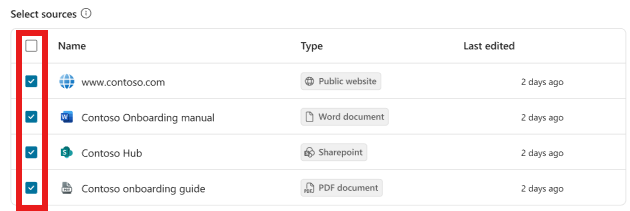
For Knowledge, select the knowledge sources you want to include in the question generation.
- For Knowledge and Topics, select and drag the slider to choose the number of questions to generate.

Select Generate.
Under Name, enter a name for your test set.
-
- Change or add the test methods you want to use:
- Add a new method:
- Select Add test method.
- Select all the methods you want to test with, then select OK. You can add multiple methods.
- For some methods, set a pass score, then select OK. The pass score determines what score results in a pass or a failure.
- Some methods require adding expected responses or keywords for each of your test cases. For more information, see Choose evaluation methods
- Select an existing test method to edit or delete.
Edit the details of the test cases. All test cases that use methods, except general quality, require expected responses. For more information on editing, see Modify a test set.
Select Save to update the test set without running the test cases or Evaluate to run the test set immediately.
Create a test set file to import
Instead of building your test cases directly in Copilot Studio, you can create a spreadsheet file with all your test cases and import them to create your test set. You can compose each test question, determine the test method you want to use, and state the expected responses for each question. When you finish creating the file, save it as a .csv or .txt file and import it into Copilot Studio.
Important
- The file can contain up to 100 questions.
- Each question can be up to 1,000 characters, including spaces.
- The file must be in comma separated values (CSV) or text format.
To create the import file:
Open a spreadsheet application (for example, Microsoft Excel).
Add the following headings, in this order, in the first row:
- Question
- Expected response
- Testing method
Enter your test questions in the Question column. Each question can be 1,000 characters or less, including spaces.
Enter one of the following test methods for each question in the Testing method column:
- General quality
- Compare meaning
- Similarity
- Exact match
- Keyword match
Enter the expected responses for each question in the Expected response column. Expected responses are optional for importing a test set. However, you need expected responses to run match, similarity, and compare meaning test cases.
Save the file as a .csv or .txt file.
Import the file by following the steps in Create a new test set.
Create a test set based on a theme
Create a test set with questions from conversations with real users. This method uses themes (preview), found in your agent's analytics.
Themes are groupings of questions taken from the pool of user questions that trigger generative answers. When you create a test set using a theme, you generate the test cases from questions asked by users related to that theme.
Use these test sets to perform evaluations focused on one area or topic of your agent's scope. For example, if you have a customer service agent, you can track answer quality for billing and payments questions separately from other use cases like troubleshooting.
Note
Before creating test sets from themes, you need access to themes in analytics. Review the prerequisites for themes (preview).
On your agent's Analytics page, go to the Themes list.
Hover over a theme, and then select Evaluate.

You can also select See all to see more themes, then select Evaluate.
Select Create and open.
Edit the details of the test sets and cases. All test cases that use methods, except general quality, require expected responses. For more information on editing, see Modify a test set.
Select Save to update the test set without running the test cases or Evaluate to run the test set immediately.