Note
Access to this page requires authorization. You can try signing in or changing directories.
Access to this page requires authorization. You can try changing directories.
A SQL database project is a local representation of SQL objects that comprise the schema for a single database, such as tables, stored procedures, or functions. The development cycle of a SQL database project helps you integrate database development into continuous integration and continuous deployment (CI/CD) workflows that are familiar as development best practices. In SSMS, you can use Microsoft.Build.Sql projects in preview to help you implement, manage, and collaborate on database changes, by providing a local definition of the database objects.
This article describes how to use SQL database projects in SQL Server Management Studio (SSMS) as part of or to anchor database DevOps workflows. For more information about SQL database projects, see SQL database projects.
Prerequisites
Create a new project
To work with SQL database projects in SSMS, you need a local folder containing your project files. You can start a project by extracting objects from an existing database or by creating new object files from scratch.

Note
SSMS might prompt you to connect to a server when opening a file from Solution Explorer. You can perform SQL database project development offline without connecting to a database.
Add objects from an existing database
Use SqlPackage to extract the schema from an existing database into individual .sql files organized by object type. Run the following command to create a folder structure with your database objects:
sqlpackage /Action:Extract /SourceConnectionString:"<connection-string>" /TargetFile:"<temp-folder>" /p:ExtractTarget=SchemaObjectType
The /p:ExtractTarget=SchemaObjectType parameter organizes the extracted files into subfolders based on schema and object type (for example, dbo/Tables, dbo/StoredProcedures). Extract to a temporary folder outside of your project directory, and then use Windows Explorer to copy the desired contents into your project folder.
For more information about SqlPackage extract options, see SqlPackage extract.
Create new objects
Add new database objects to your project by creating .sql files in the project folder. Each file should contain a single CREATE statement for one database object. For example, a table definition:
CREATE TABLE [dbo].[Products]
(
    [ProductId] INT NOT NULL PRIMARY KEY,
    [ProductName] NVARCHAR (100) NOT NULL,
    [Price] DECIMAL (10, 2) NOT NULL
);
Organize files by schema and object type using subfolders, such as dbo/Tables or Sales/StoredProcedures. This structure matches the output of SqlPackage extract and makes it easier to locate objects as your project grows. The SQL project build process includes all .sql files in the project folder and its subfolders by default.
SSMS provides templates for common items to help you get started. To add a new item, right-click the project in Solution Explorer, select Add > New Item, and choose from the list of SQL object templates.
Open existing projects
To open an existing SQL database project in SSMS, select File > Open > Project/Solution and navigate to the .sqlproj file.
Important
SSMS supports SDK-style Microsoft.Build.Sql projects only. The minimum supported SDK version is 2.1.0. If you have an original SQL project created in Visual Studio, you must convert it to the SDK-style format before opening it.
For guidance on converting original SQL projects to the SDK-style format, see Convert an original SQL project to an SDK-style project.
Build projects and deploy changes
The SQL project workflow consists of two main steps: building the project to validate and compile the schema, and deploying the compiled output to a target database.
Project build
Building a SQL project validates the relationships between objects and checks the T-SQL syntax against the specified target platform. The build process produces a .dacpac file, which contains a compiled model of the database schema.
To build a project in SSMS, right-click the project in Solution Explorer and select Build.
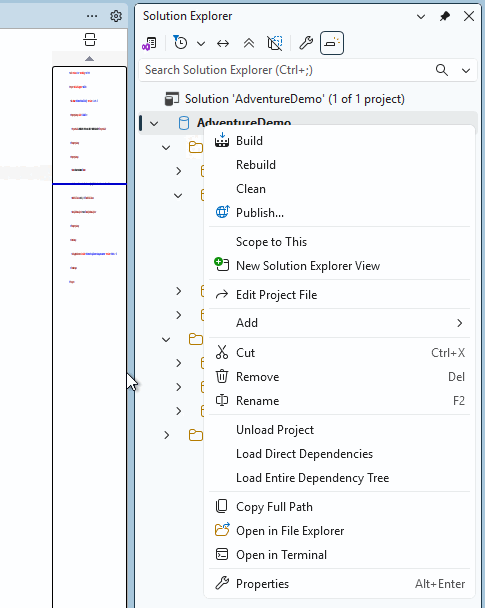
The build output displays any errors or warnings. Errors indicate issues that prevent deployment, such as a view referencing a table that doesn't exist. Warnings highlight potential issues like inconsistent casing in object names.
On a successful build, the .dacpac file is created in the bin\Debug folder within your project directory.
For more information about troubleshooting build issues, see Troubleshoot SQL project build errors.
Deploy changes
After building your project, deploy the .dacpac to a target database using the Publish dialog in SSMS. The deployment process compares the .dacpac to the target database and generates the necessary CREATE, ALTER, or DROP statements to synchronize the database with your project.
To deploy, right-click the project in Solution Explorer and select Publish. In the Publish dialog, configure your target database connection and select Publish to apply changes or Generate Script to review the deployment script before execution.

The publish process is idempotent, so you can deploy the same .dacpac multiple times without causing issues. This approach enables you to deploy to multiple environments (development, staging, production) by using the same compiled artifact.
For detailed information about deployment options and configuration, see Get started with SQL database projects.