Muistiinpano
Tämän sivun käyttö edellyttää valtuutusta. Voit yrittää kirjautua sisään tai vaihtaa hakemistoa.
Tämän sivun käyttö edellyttää valtuutusta. Voit yrittää vaihtaa hakemistoa.
Note
Community interest groups have now moved from Yammer to Microsoft Viva Engage. To join a Viva Engage community and take part in the latest discussions, fill out the Request access to Finance and Operations Viva Engage Community form and choose the community you want to join.
This article describes batch processing and batch servers, and how to plan for their use.
The batch platform provides an asynchronous, server-based batch processing environment that can process tasks across multiple instances of Application Object Server (AOS).
Familiarize yourself with the following aspects of the batch platform:
- A batch job is a process that achieves a specific goal. A batch job consists of one or more batch tasks.
- A batch task is an activity that a batch job runs. You can add batch tasks that have multiple types of dependencies to a batch job. You can also configure AOS instances to run multiple threads, each of which runs a task. Any available AOS instance that's configured as a batch server can pick up all batch tasks that are waiting to be executed. To improve throughput and reduce overall execution time, you can define a batch job with many tasks and then use a batch server to run the tasks against all available AOS instances.
- A batch group is an attribute of a batch task. It lets the administrator determine or specify which AOS instance runs the task. When you create a new task, you put it in the default batch group. You configure all batch servers to process the default batch group and the waiting tasks from any job. Additionally, you can create a named batch group and then set an affinity between that batch group and specific AOS instances. After you create this affinity, only the specified AOS instances process tasks from the named batch group, and those AOS instances process tasks from the named batch group only. You can also add the default batch group to the configured servers, if that batch group is required.
Note
After you implement batch priority-based scheduling, batch groups no longer control associations with batch servers. Instead, they're used to assign priorities to batch jobs and manage the maximum concurrency of batch tasks within their respective batch jobs. For more information, see Priority-based batch scheduling.
Batch server topology planning
The capacity of a batch server is based on the maximum number of threads that can run concurrently on the AOS instance. Each thread runs one batch task. You can add complex dependencies between or among tasks. You can run these tasks in serial steps or parallel steps, depending on the business logic and requirements. All tasks that don't have any dependencies are considered parallel tasks. AOS instances that are configured as batch servers periodically check for tasks that are waiting to be processed. The batch server assigns each parallel task to a thread and starts to process the thread.
You can run multiple threads across multiple AOS instances. Each AOS instance automatically runs multiple threads, depending on the capacity that you define in the configuration settings. Therefore, parallel tasks from a job can run on multiple threads across multiple AOS instances.
A batch server checks for available threads once per minute. Therefore, you might have to wait for a minute before you see that a ready task gets picked up for processing by an available batch thread.
Batch server management planning
You can manage all batch servers from a single location.
A common use for batch servers is to load balance jobs across multiple servers. You can set the number of threads that the batch server processes.
Because batch servers are also active AOS instances that service requests from the client and other associated components, you must carefully determine when an AOS instance should be available to process batches.
Walkthroughs
The following walkthroughs describe how the system processes tasks and how you can use batch groups to associate batch jobs with batch servers.
Batch processing of dependent tasks
In this example, you create a job named JOB 1. As the following diagram shows, the job has seven tasks: TASK 1, TASK 2, TASK 3, TASK 4, TASK 5, TASK 6, and TASK 7.
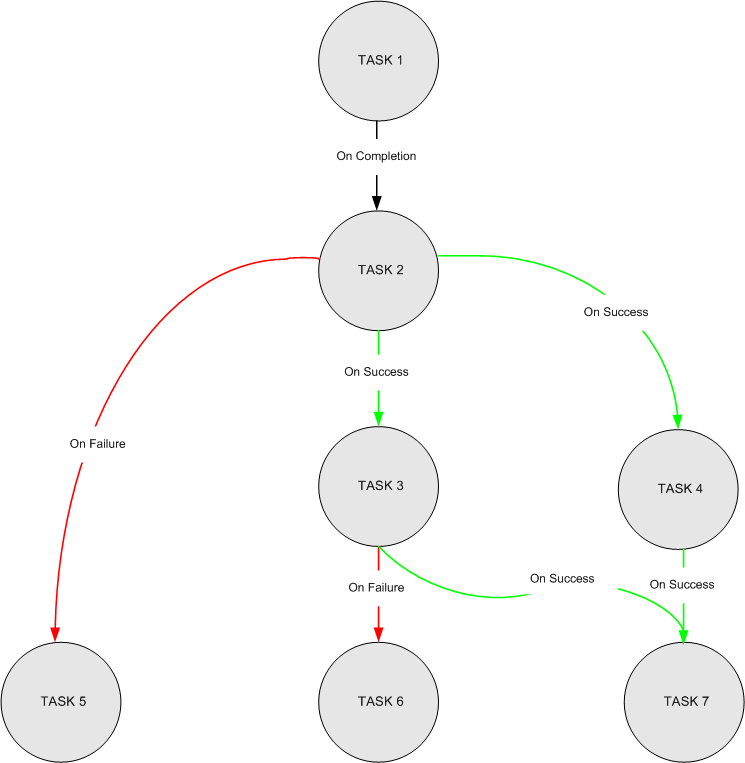
The tasks have the following dependencies:
- TASK 1 is the first task.
- TASK 2 runs when TASK 1 is completed (regardless of the success or failure of TASK 1).
- TASK 3 runs when TASK 2 is successful.
- TASK 4 runs when TASK 2 is successful.
- TASK 5 runs when TASK 2 fails.
- TASK 6 runs when TASK 3 fails.
- TASK 7 runs when both TASK 3 and TASK 4 are successful.
You configure two batch servers, Batch 1 and Batch 2. Each server has a capacity of one thread.
Batch 1 checks for waiting tasks, assigns TASK 1 to its thread, and starts to run TASK 1. Although Batch 2 and its single thread are also available, TASK 2 continues to wait until TASK 1 is completed.
As soon as TASK 1 is completed, TASK 2 is ready to run. Batch 2 checks for waiting tasks, assigns TASK 2 to its thread, and starts to run TASK 2.
If TASK 2 is successful, TASK 3 and TASK 4 are ready to run. Batch 2 checks for waiting tasks, assigns TASK 3 to its thread, and starts to run TASK 3. Batch 1 also checks for waiting tasks, assigns TASK 4 to its thread, and starts to run TASK 4.
If TASK 3 and TASK 4 are successful, one of the batch servers runs TASK 7.
If TASK 2 fails, one of the batch servers runs TASK 5.
If TASK 3 fails, one of the available batch servers runs TASK 6.
Note
This example walkthrough uses Batch 1 and Batch 2 to explain the concept. Any batch server that has available threads starts to run a waiting task. You must create a batch group to determine or specify which batch job runs on which server.
Batch processing that uses batch groups
By implementing Priority-based batch scheduling, you can logically group jobs and set their default scheduling priority. Additionally, use Concurrency control to limit the number of tasks that run concurrently within each batch job in that group.
Understanding batch server restarts
The batch server might restart for several reasons. Here's an overview of these reasons:
Routine maintenance activities – During routine maintenance activities, such as patching, batch services might temporarily interrupt. To understand the effect of maintenance activities and access known maintenance schedules, see the following articles:
- Operating System Maintenance Schedule – Learn more about planned operating system maintenance schedules.
- Experience during the nZDT Maintenance Window – Gain insights into system behavior during the nZDT maintenance window.
Batch server failures ("crashes") – Batch server failures can occur on batch servers because of batch jobs that are currently running on their respective servers. Detailed failure information is available in Microsoft Dynamics Lifecycle Services. For more information about how to monitor failure information, see Monitoring and telemetry using Application Insights.
Infrastructure failover – Restarts can occur if infrastructure problems lead to an internal failover. The system uses autoscaling and capacity management to ensure optimal environment performance and availability.
Use of the Enhanced batch abort feature – If it becomes necessary to forcibly halt a running batch job, use the Enhanced batch abort feature. This action triggers a restart of the specific batch servers where the job was running.
For enhanced reliability, retry batch tasks that interruptions affect. Consider implementing retry mechanisms in the logic of your batch class. For information about how to implement retry logic, see Enable batch retries.
Note
- To help maintain system stability and compatibility, ensure that you're on a supported version.
- Review any customizations and file uploads to mitigate potential impacts on batch job execution and system performance.
Batch throttling
The batch platform uses two types of batch throttling to ensure smooth operation.
Batch class throttling
Batch class throttling prevents excessive tasks by limiting the average number of executions of a specific batch class per minute per batch server. By default, the upper limit is set to 60 tasks per minute. If this limit is exceeded, the batch platform temporarily suspends the execution of new tasks of that batch class for another minute, to prevent it from monopolizing system resources.
Batch resource-based throttling
When system resources, such as SQL database transaction units (DTUs), CPU, or memory that is allocated to the batch server, approach their capacity limits, the execution of new batch tasks is delayed. This delay enables the system to manage its resources efficiently and ensures that the existing workload doesn't overwhelm the system.
In effect, by delaying the execution of new batch tasks until the resource levels return to normal, we implement a guardrail mechanism. The guardrail is put in place to safeguard the performance and stability of your environment. It ensures that the environment operates optimally, even during periods of increased demand or resource constraints.
The purpose of this approach is to maintain a balance between the workload demands and the available resources. By temporarily pausing the initiation of new batch tasks until enough resources are available, we prevent the potential performance degradation or system instability that can occur if the system becomes overloaded.
In essence, the delay mechanism serves as a proactive measure to optimize resource utilization and ensure that your environment continues to perform at its best, even under challenging conditions.
For information that can help you use Lifecycle Services to diagnose performance issues, see Troubleshooting SQL performance.
Note
The batch platform can detect situations where there are no non-throttled tasks to schedule and run at any given time. In these situations, the batch tries to fetch batch tasks from the throttled classes queue to prevent resources from being idle.